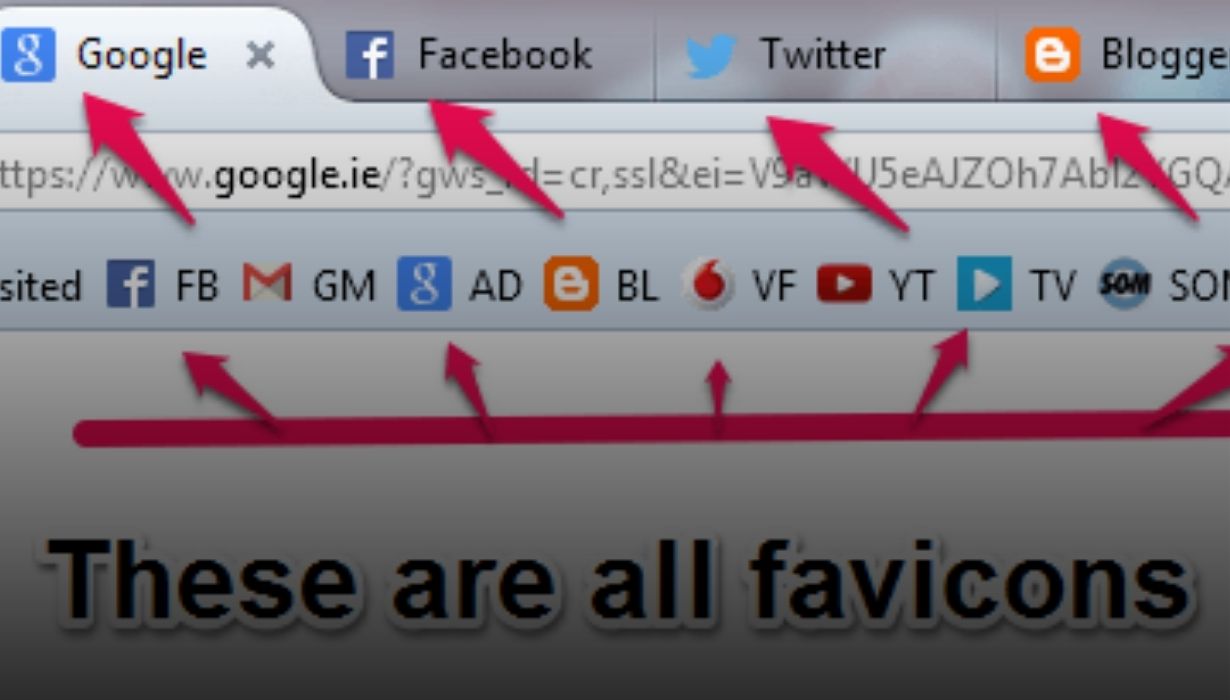
Managing a website means paying attention to small details that shape how your site looks and feels. One of those details is the favicon, the small icon shown in browser tabs, bookmarks, and device shortcuts. While it may look simple, generating a favicon from a PNG image involves size choices, format decisions, and browser behavior that many site owners overlook.
This guide explains how to generate a favicon from a PNG image, why conversion matters, which sizes work best, and how browsers handle favicons. It also covers privacy-focused tools and common issues that prevent favicons from displaying correctly.
What a Favicon Is and Why Websites Use One
A favicon is a small icon associated with a website. Browsers use it to help users identify a site quickly. Favicons appear in browser tabs, bookmarks, favorites, and some address bars.
Google explains that favicons improve usability by helping users recognize pages when multiple tabs are open (Google Developers).
Why PNG Is a Good Source Format for Favicons
PNG is a common starting format for favicons because it supports transparency, uses lossless compression, and is easy to export from most design tools.
However, PNG alone does not always provide full browser compatibility. Some browsers prefer ICO files, which can contain multiple icon sizes in a single file.
Favicon File Formats Explained
PNG Favicons
PNG favicons work in many modern browsers when linked correctly. They are suitable for simple setups, but each PNG file contains only one size.
ICO Favicons
ICO files can store multiple sizes in one container, allowing browsers to select the best option. Because of this, ICO remains the most reliable favicon format across desktop browsers (W3C HTML Specification).
SVG Favicons
SVG favicons scale cleanly and are supported by modern browsers like Chrome and Firefox. Safari support is limited, and SVG still requires fallback formats.
Recommended Favicon Sizes for Full Browser Support
| Size (px) | Common Use Case |
|---|---|
| 16×16 | Browser tabs |
| 32×32 | Bookmarks and taskbars |
| 48×48 | Windows site icons |
| 64×64 | High-DPI displays |
| 128×128 | Chrome app icons |
| 256×256 | Large shortcuts and pinned tiles |
Google recommends providing multiple favicon sizes or using an ICO file to ensure correct rendering.
How to Generate a Favicon From a PNG (Step-by-Step)
- Start with a high-resolution PNG: Use a square PNG image, ideally 512×512 pixels, with clear shapes and strong contrast.
- Convert PNG to ICO: Use a privacy-focused tool such as this PNG to ICO favicon generator to automatically create multiple sizes in one file.
- Download the favicon file: The generated ICO file will include all required sizes.
- Upload to your website: Place the file in your site root or assets directory.
How Browsers Handle Favicons
Desktop Browsers
Chrome, Firefox, Edge, and Safari usually prioritize ICO files when available. If multiple icon formats are defined, the browser selects the most suitable size.
Mobile Browsers
Mobile platforms use additional icons. Apple devices rely on apple-touch-icon, while Android uses larger PNGs for home screen shortcuts.
Caching Behavior
Favicons are heavily cached. Google notes that updates may not appear immediately.How to Add a Favicon to Your Website
HTML Link Method
<link rel="icon" href="/favicon.ico" sizes="any">
This method works for most static and dynamic websites.
CMS and Website Builders
Platforms such as WordPress include built-in favicon settings, which generate the required link tags automatically.
Common Favicon Problems and How to Fix Them
- Check the file path and file name
- Clear browser cache or use a hard refresh
- Ensure multiple icon sizes are included
Mozilla notes that missing size variants are a frequent cause of favicon display issues.
Privacy Considerations When Using Online Favicon Tools
Privacy-first favicon tools should process images temporarily, avoid long-term storage, and operate over encrypted connections. These practices align with general online privacy guidance from the Electronic Frontier Foundation.
Best Practices for High-Quality Favicons
- Use simple shapes
- Maintain strong contrast
- Avoid thin text
- Test across browsers and devices
Apple’s design guidance also emphasizes clarity and simplicity for small icons.
When You Should Update or Replace a Favicon
Update your favicon when rebranding, improving mobile support, or adjusting contrast for accessibility. Consistent icons support recognition and usability.
Frequently Asked Questions
Can I use a PNG favicon without converting it to ICO?
Yes, but ICO files offer better compatibility because they contain multiple sizes.
Why does my favicon look blurry?
Blurriness usually occurs when the browser scales a single-size image. Multiple sizes prevent this issue.
How long do browsers cache favicons?
Caching can last days or weeks, which delays updates.
What PNG size should I start with?
A 512×512 PNG provides enough resolution for all common favicon sizes..
Are online favicon generators safe?
They can be safe if they follow privacy-first processing and avoid storing uploaded files, as recommended by the EFF.